
Onboard your organization
Appwarden integrates with your existing development and communication workflows to provide a seamless experience for your infrastructure and security teams to safeguard your web3 platform. This guide will walk you through the process of onboarding your organization with Appwarden.
Getting started with the dashboard
Section titled “Getting started with the dashboard”The easiest way to set up Appwarden is through the guided onboarding flow in the Appwarden dashboard. Sign in with your Discord account to be guided through the process.
Sign in to the Appwarden dashboard to complete setup with a guided onboarding experience
The dashboard will guide you through each step of the setup process:
- Chat Integration — Connect your Discord server or Slack workspace to receive alerts
- Create Domain Configuration Repository — Set up a GitHub repository for your domain configurations
- Install GitHub App — Connect your GitHub organization to manage your domain configurations
- Select Repository — Associate Appwarden with your domain configuration repository
The sections below provide detailed instructions for each step if you prefer to set things up manually or need additional reference.
Step 1: Set up chat integration
Section titled “Step 1: Set up chat integration”To interact with Appwarden, you will need to connect a Discord server or Slack workspace. The Appwarden bot can issue commands and communicates when suspicious activity is detected on an Appwarden-protected domain.
Discord
Section titled “Discord”Add the Appwarden Discord bot to your server from your organization’s Settings → Integrations in the Appwarden dashboard.
After adding the bot, run the setup command in the Discord channel where you want to receive Appwarden notifications. The dashboard will provide you with a unique setup code:
/settings setup code:[setup_code_value]Configuring Discord permissions
Section titled “Configuring Discord permissions”By default, only Server Administrators can interact with Appwarden. To grant access to other users and roles, navigate to Discord Server Settings > Integrations > Appwarden and update each command in the Commands list with the desired user and role access.
To grant your security team access to issue Appwarden commands, we recommend creating a
@security role in Discord and associating it with each Appwarden command. Read Discord’s
documentation on command
permissions
for more information.
Add the Appwarden Slack app to your workspace from your organization’s Settings → Integrations in the Appwarden dashboard.
After installing the app, run the setup command in the Slack channel where you want to receive Appwarden notifications. The dashboard will provide you with a unique setup code:
/settings setup code:[setup_code_value]Configuring Slack permissions
Section titled “Configuring Slack permissions”By default, only Slack workspace owners and admins can install apps. Once Appwarden is installed, members can run commands in any channel where the Appwarden app has been added. Manage app installation and channel access from your Slack workspace settings.
In addition to platform command permissions, you can control what team members can access in the Appwarden dashboard by assigning roles and permissions. Learn more in the roles and permissions guide.
Step 2: Create your domain configuration repository
Section titled “Step 2: Create your domain configuration repository”Appwarden continuously monitors your infrastructure and web traffic against your domain configuration and creates an incident when a mismatch is detected. You will manage your domain configuration in a source-controlled GitHub repository of your choice.
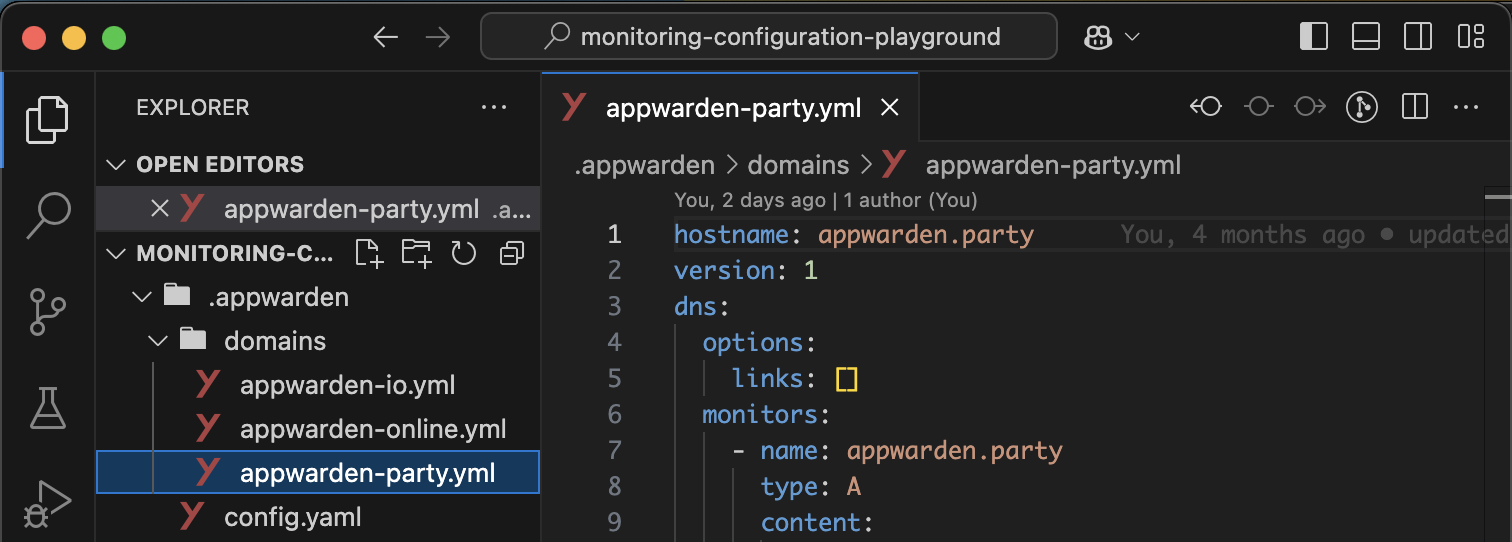
We recommend using our template repository to bootstrap your Appwarden domain configuration. It comes Appwarden folder scaffolding and a CLI to quickly generate domain configuration files as well as a template GitHub Actions workflow for seamlessly deploying the Appwarden middleware to Cloudflare. This makes your Appwarden domain configuration:
- Version controlled and auditable
- Easily accessible by your developers and security personnel
- Conveniently co-located with your infrastructure and source code
- Inherit GitHub’s outstanding security and access control features
Create your Appwarden configuration repository from our template repository to manage your domain configuration
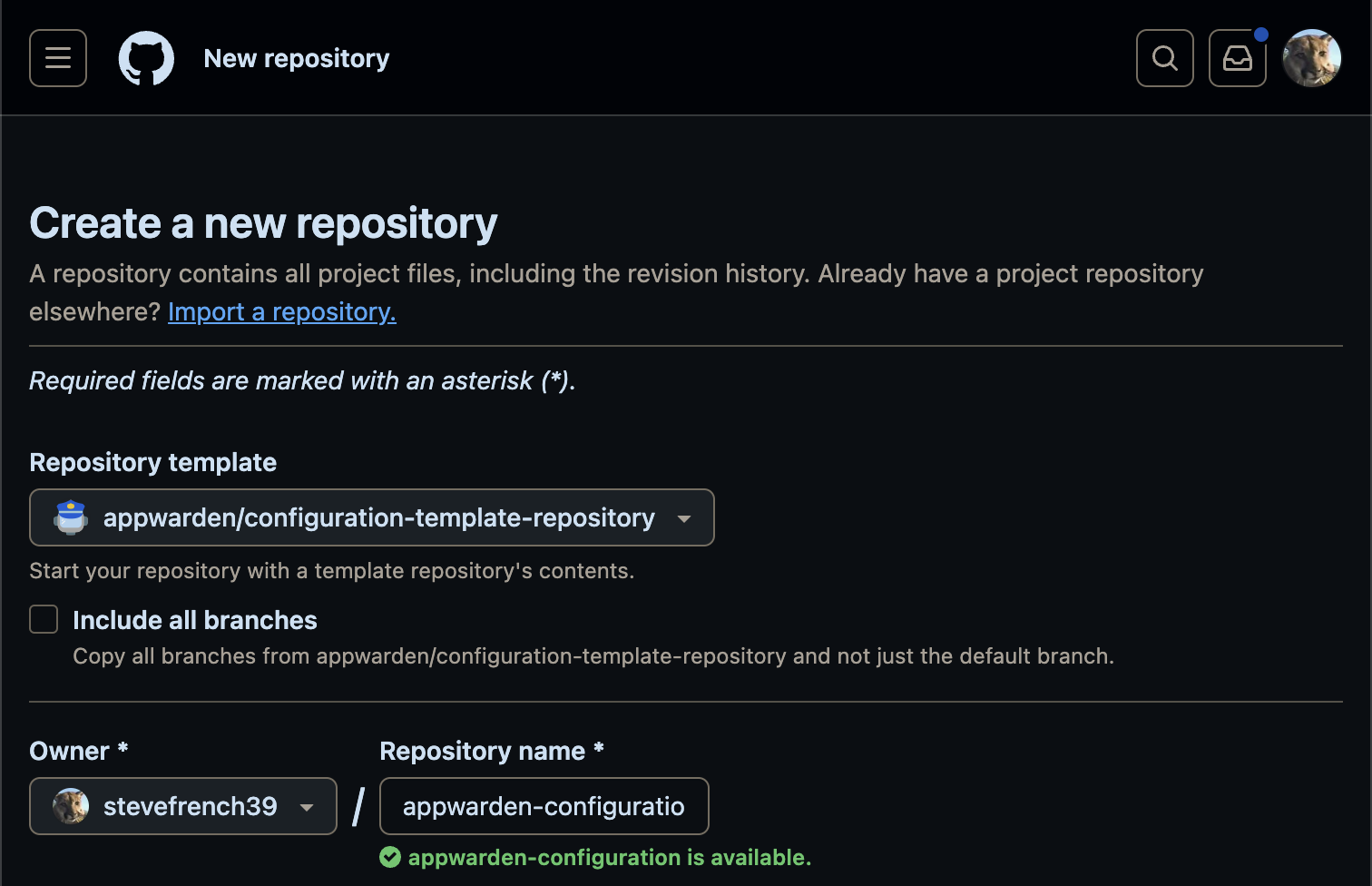
Once the repository is created, continue to the next step to install the GitHub App.
Step 3: Install the GitHub App
Section titled “Step 3: Install the GitHub App”Appwarden’s GitHub App integration synchronizes your domain configuration with Appwarden, allowing you to manage your domain configuration directly from any GitHub repository.
The Appwarden GitHub App installation flow must be initiated from the Appwarden dashboard.
When installing the GitHub App, we recommend following the security best practice of least privilege:
- Choose “Only select repositories” instead of “All repositories”
- Select only your Appwarden domain configuration repository
- Complete the installation
This ensures Appwarden only has access to the repositories it needs.
Step 4: Select your domain configuration repository
Section titled “Step 4: Select your domain configuration repository”After installing the GitHub App, return to the Appwarden dashboard to associate your domain configuration repository with Appwarden. The dashboard will list all repositories the GitHub App has access to.
To function properly, the GitHub app only requires access to your domain configuration repository. To follow best practices, we recommend limiting access to only the domain configuration repository.
Select your domain configuration repository to complete onboarding. You’ll be taken to your organization dashboard where you can monitor your domains and manage your Appwarden configuration.
Continue on to the next page to set up your Appwarden domain configurations.