
Verify your setup
Verify your domain ownership
Section titled “Verify your domain ownership”Before Appwarden can control external interactions with your website, you need to verify ownership of each domain in your domain configuration. Domains are verified automatically when the Appwarden middleware successfully sends heartbeats to the Appwarden API.
Install the middleware
Section titled “Install the middleware”If you haven’t already installed the Appwarden middleware, follow the appropriate integration guide for your platform:
Deploy your application
Section titled “Deploy your application”Deploy your application with the middleware installed. Once the middleware sends its first successful heartbeat, your domain will be automatically marked as verified.
Check verification status
Section titled “Check verification status”- Sign in to the Appwarden dashboard
- Navigate to Settings > Security
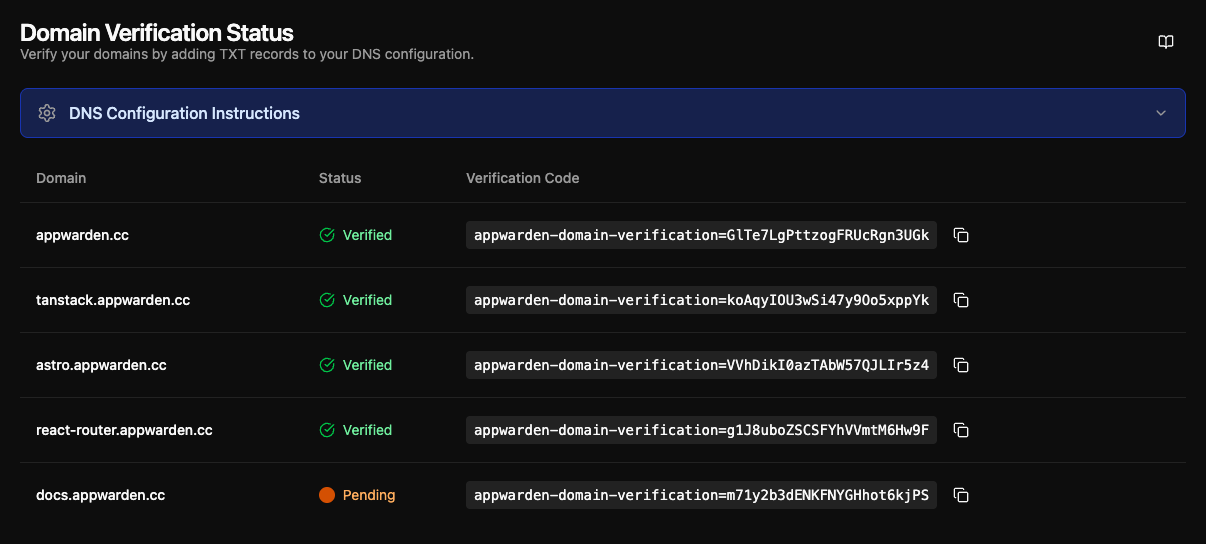
- Find the Domain Verification card
The dashboard displays a table with all domains from your domain configuration. Each domain shows:
- Domain — The fully qualified domain name
- Status — An orange pulsing indicator for pending verification, or a green checkmark for verified domains
Automatic verification
Section titled “Automatic verification”Once your middleware is deployed and sends a successful heartbeat, the status in the dashboard will update from pending (orange) to verified (green). This typically happens within minutes of deployment.
If your domain remains unverified after deploying the middleware, follow the troubleshooting steps in this guide.
If validation is still unsuccessful, join the community and ping us for assistance. We’d be happy to check your setup.
Test your Appwarden installation
Section titled “Test your Appwarden installation”To verify that Appwarden is correctly installed in your web project, lock your domain and then unlock it after confirming the lock page appears. Run the following command in your Discord server or Slack channel:
/quarantine lockAfter a few seconds, navigate to your domain in your browser. You should be redirected to your configured lock page.
Once you have confirmed the lock page appears, unlock your domain to restore normal traffic:
/quarantine unlockIf the lock page doesn’t appear after intermittently refreshing the page for up to 30 seconds, please follow the troubleshooting steps in this guide.
Simulate an incident on your domain
Section titled “Simulate an incident on your domain”Appwarden creates an incident when unexpected changes to web infrastructure and response headers are detected. To see what a real incident on your domain would look like, run a test incident on our test domain from the Incidents page in the Appwarden dashboard by clicking Run test incident.
In a few moments, an incident message and thread will appear in your Discord channel or Slack channel. Inspect the incident message and thread to understand more about configuration diffs and incident lifecycles.
To learn more about incidents, see the incident management guide.