
Protect your Cloudflare project with Appwarden
Overview
Section titled “Overview”To secure your domain against an in-progress attack, add the Appwarden middleware to your Cloudflare project. When you issue the /quarantine lock command from Discord or Slack, Appwarden will quarantine your website and redirect users to your lock page.
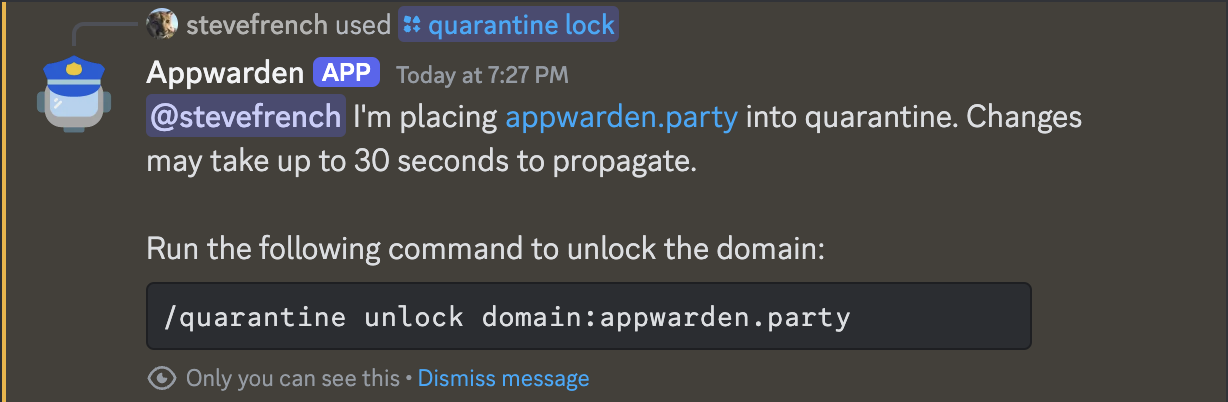
Appwarden supports any orange clouded website on Cloudflare. This guide helps you choose the right integration approach for your project.
The universal middleware deploys as a standalone Cloudflare Worker and may incur additional usage-based charges. Cloudflare has an affordable pricing model, but be sure to review it before proceeding.
Choosing a deployment strategy
Section titled “Choosing a deployment strategy”On Cloudflare, you may use a framework-specific adapter if you are using a supported framework, or deploy the universal middleware as a standalone Cloudflare Worker. The universal middleware supports any website deployed on Cloudflare.
Universal middleware
Section titled “Universal middleware”- Supports any website — Works with any Cloudflare project regardless of framework.
- Automatic synchronization — Automatically synchronizes with your Appwarden domain configuration.
- Managed updates — Deployed from your CI pipeline and its version is automatically managed for up-to-date security patches at deploy time.
- Additional cost — Incurs additional usage-based charges as a standalone Cloudflare Worker.
Learn how to install the Appwarden universal middleware on Cloudflare.
Framework-specific adapters
Section titled “Framework-specific adapters”- No additional cost — Runs inside your application’s existing worker and incurs no additional cost.
- Automatic synchronization — Automatically synchronizes by including the
appwarden-linkprebuild script in your build. - Framework dependent — Only available for supported frameworks.
This approach integrates Appwarden into your framework’s middleware system and deploys together with your application.
Shared setup for framework adapters
Section titled “Shared setup for framework adapters”Framework adapters can synchronize your Appwarden lock page and CSP settings at build time by using
the bundled appwarden-link CLI together with getAppwardenConfiguration().
- Add a
prebuildscript that links the hostname you want to protect:
{ "scripts": { "prebuild": "appwarden-link --fqdn=your.app" }}- The CLI writes generated configuration to
.appwarden/linked/middleware.json. Keep.appwarden/linked/out of source control. - Import that generated file in your middleware code and merge it with any code-level overrides by
calling
getAppwardenConfiguration(generatedConfig, overrides). Values inoverridestake precedence over the generated config.
appwarden-link reads APPWARDEN_API_TOKEN from the environment running your build. Passing
--fqdn=your.app in the script above avoids needing to set APPWARDEN_FQDN separately.
See the framework-specific guides:
- Astro on Cloudflare Workers
- React Router on Cloudflare Workers
- TanStack Start on Cloudflare Workers
- Next.js on Cloudflare Workers
Universal Middleware
Section titled “Universal Middleware”This section covers deploying the universal Appwarden middleware. The universal middleware deploys as a Cloudflare Workers service that services requests to Appwarden-configured domains via Worker Routes.
How the middleware works
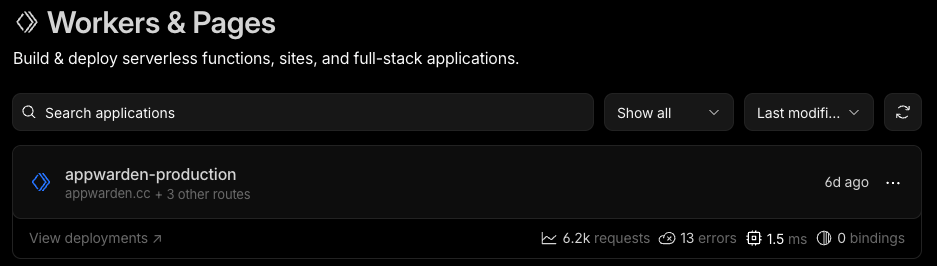
Section titled “How the middleware works”Deploys the most up-to-date version of Appwarden at project build time
Section titled “Deploys the most up-to-date version of Appwarden at project build time”The action automatically deploys the most up-to-date version of Appwarden to Cloudflare. Your middleware stays current with the latest security features and improvements.
Configuration management
Section titled “Configuration management”Your middleware configuration is automatically applied from the domain configuration file. Simply manage your domain configuration and the action handles the rest.
Full CSP support
Section titled “Full CSP support”This middleware fully supports Appwarden’s nonce-based Content Security Policy (CSP) functionality, enabling robust protection against browser-based attacks while maintaining compatibility with your application.
Routing behavior
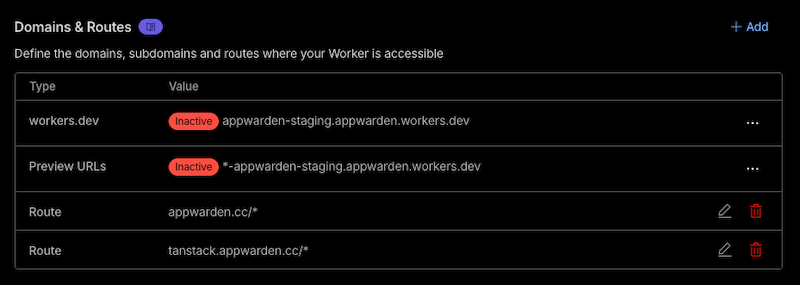
Section titled “Routing behavior”The action builds a single Cloudflare Worker script that runs on every request to
the hostnames listed in the middleware section of your domain configuration
files.
For example, given this domain configuration:
hostname: appwarden.ccversion: 1services: middleware: - url: appwarden.cc options: lock-page-slug: /maintenance csp-mode: report-only csp-directives: script-src: - "self" - "{{nonce}}" - url: tanstack.appwarden.cc options: lock-page-slug: /maintenance csp-mode: enforced csp-directives: img-src: - "self"The deployed Cloudflare Workers service will include a route for each configured hostname:
Prerequisites
Section titled “Prerequisites”Before proceeding, ensure you have:
- A domain proxied through Cloudflare (orange-clouded)
- A GitHub project repository or domain configuration repository
- Your Appwarden API token
- Your Cloudflare Account ID and API token
Deployment
Section titled “Deployment”We recommend deploying Appwarden middleware via GitHub Actions to have fine-grained control over your deployment strategy. The deployment workflow template is available in the domain configuration repository.
1. Set up the GitHub Actions workflow
Section titled “1. Set up the GitHub Actions workflow”Choose whether to deploy Appwarden from your domain configuration repository (e.g. when you update your domain configuration) or your project repository (e.g. when you release a new version of your project).
You may combine your domain configuration repository into your project
repository to manage your Appwarden configuration and project together by
adding a .appwarden directory to your project repository and updating your
Settings > GitHub > Domain Configuration
Repository in the
Appwarden dashboard.
In the chosen repository, create a GitHub Actions workflow file at .github/workflows/deploy-appwarden-middleware.yml with the content below.
name: 🤖 Deploy Appwarden on Cloudflareon: workflow_dispatch# 1️⃣ Uncomment the following lines to deploy the middleware on every release# deploy the middleware on every release# on:# release:# types: [published]# 1️⃣ or, uncomment the following lines to deploy the middleware on a push to a specific branch# on:# push:# branches:# - main
env: # 2️⃣ Configure your deployment: # - CLOUDFLARE_ACCOUNT_ID: Your Cloudflare account ID (set as a variable in GitHub) # - APPWARDEN_API_TOKEN & CLOUDFLARE_API_TOKEN: Add as secrets (https://docs.github.com/en/actions/security-for-github-actions/security-guides/using-secrets-in-github-actions) # - Create APPWARDEN_API_TOKEN in the [Appwarden dashboard](https://use.appwarden.io/?to=settings/monitoring) # - Create CLOUDFLARE_API_TOKEN in the [Cloudflare dashboard](https://dash.cloudflare.com/profile/api-tokens) using the "Edit Cloudflare Workers" template CLOUDFLARE_ACCOUNT_ID: ${{ vars.CLOUDFLARE_ACCOUNT_ID }} APPWARDEN_API_TOKEN: ${{ secrets.APPWARDEN_API_TOKEN }} CLOUDFLARE_API_TOKEN: ${{ secrets.CLOUDFLARE_API_TOKEN }}
jobs: deploy-appwarden: name: Deploy Appwarden runs-on: ubuntu-latest steps: - uses: actions/checkout@v4
- name: Setup node uses: actions/setup-node@v4
# 3️⃣ Uncomment the following lines if you're using `npm` # - name: Setup npm # run: npm ci --ignore-scripts
# 3️⃣ Uncomment the following lines if you're using `yarn` # - name: Install dependencies # run: yarn install --ignore-scripts
# 3️⃣ Uncomment the following lines if you're using `pnpm` # - name: Setup pnpm # uses: pnpm/action-setup@v4 # with: # run_install: | # - args: [--ignore-scripts]
# This builds the Appwarden middleware for Cloudflare - name: Build @appwarden/middleware id: build uses: appwarden/build-cloudflare-action@v3 with: debug: true cloudflare-account-id: ${{ env.CLOUDFLARE_ACCOUNT_ID }} appwarden-api-token: ${{ env.APPWARDEN_API_TOKEN }}
# This deploys the Appwarden middleware to Cloudflare - name: Deploy to Cloudflare uses: cloudflare/wrangler-action@v4.0.0 env: APPWARDEN_API_TOKEN: ${{ env.APPWARDEN_API_TOKEN }} with: packageManager: npm # 4️⃣ add your package manager (e.g. npm, yarn, or pnpm) workingDirectory: .appwarden/generated-middleware environment: production accountId: ${{ env.CLOUDFLARE_ACCOUNT_ID }} apiToken: ${{ env.CLOUDFLARE_API_TOKEN }} secrets: | APPWARDEN_API_TOKEN
- name: Deployment successful run: | echo "::notice::✅ Appwarden middleware v${{ steps.build.outputs.middlewareVersion }} deployed successfully to: ${{ steps.build.outputs.hostnames }} | View in Cloudflare dashboard: https://dash.cloudflare.com/${{ env.CLOUDFLARE_ACCOUNT_ID }}/workers-and-pages"2. Configure the workflow
Section titled “2. Configure the workflow”Follow the emoji action item instructions (e.g. 1️⃣) in the workflow file above:
- To set
CLOUDFLARE_ACCOUNT_ID, navigate to Cloudflare Dashboard > Your Account > Workers and copy the Account ID from the sidebar - To set
APPWARDEN_API_TOKEN, refer to the API token management guide - To set
CLOUDFLARE_API_TOKEN, create an API token in your Cloudflare dashboard with Worker permissions
3. Deploy the workflow
Section titled “3. Deploy the workflow”- Push the modified workflow file to your repository
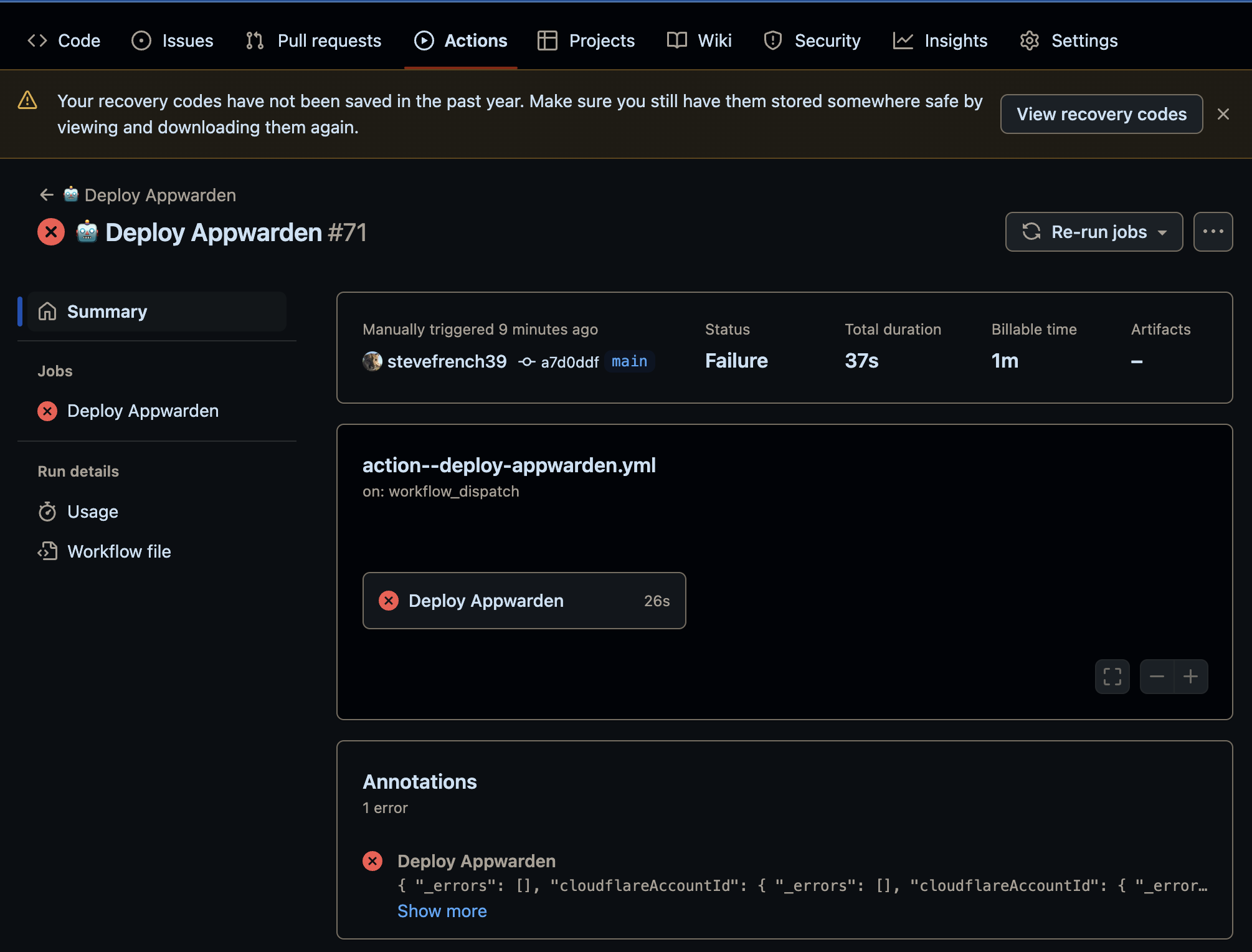
- In your repository Actions tab, run the workflow using the workflow_dispatch trigger and ensure the workflow runs successfully
- If the job failed, inspect the logs to identify the issue. Feel free to reach out in our community for assistance
- If you enabled a on push or on release trigger in 1️⃣ above, push a change to the target branch or create a release to ensure the workflow succeeds
- Ensure the middleware is deployed by navigating to Cloudflare Dashboard > Your Account > Your Domain > Worker Routes and checking the
appwarden-productionscript is associated with the *your.app/* route
Finishing up
Section titled “Finishing up”After deploying your project, navigate to your Cloudflare Dashboard > Workers & Pages > appwarden-production > Logs for error messages from @appwarden/middleware after refreshing the website repeatedly. Inspect any errors and adjust your environment before redeploying your project until all errors are resolved.
Once any errors are resolved, issue the /quarantine lock command in Discord or /appwarden-quarantine lock in Slack. Then, navigate to your domain in your browser. If the lock page appears (may take up to 30 seconds), Appwarden is correctly installed in your web project. Issue the unlock command to restore normal traffic.
Congratulations — Appwarden is protecting your domain! In the event of a security breach, you
can now issue the /quarantine lock command in Discord or /appwarden-quarantine lock in Slack
to quarantine your website within seconds, protecting your
users while the problem is resolved.
Framework-Specific Adapters
Section titled “Framework-Specific Adapters”If you are using a supported framework, you can use a framework-specific adapter that integrates Appwarden into your framework’s middleware system. The following sections provide detailed integration guides for each supported framework.
Astro on Cloudflare Workers
Section titled “Astro on Cloudflare Workers”This section covers integrating Appwarden with Astro projects deployed to Cloudflare Workers. Appwarden integrates as native Astro middleware by running before your routes to protect your site.
This guide applies to server-rendered (SSR) Astro projects using the @astrojs/cloudflare
adapter. For static Astro sites, see the Universal Middleware section.
Prerequisites
Section titled “Prerequisites”Before proceeding, ensure you have:
- An Astro project with SSR enabled (
output: "server"oroutput: "hybrid") - The
@astrojs/cloudflareadapter installed and configured - Your Appwarden API token
Installation
Section titled “Installation”Install the Appwarden middleware package:
npm install @appwarden/middleware# orpnpm add @appwarden/middleware# oryarn add @appwarden/middlewareConfiguration
Section titled “Configuration”1. Create Astro middleware
Section titled “1. Create Astro middleware”Create (or update) your Astro middleware file at src/middleware.ts:
import { createAppwardenMiddleware, getAppwardenConfiguration,} from "@appwarden/middleware/cloudflare/astro"import { sequence } from "astro:middleware"import { env } from "cloudflare:workers"import appwardenConfig from "../.appwarden/linked/middleware.json"
const appwarden = createAppwardenMiddleware(() => getAppwardenConfiguration(appwardenConfig, { appwardenApiToken: env.APPWARDEN_API_TOKEN, }),)
export const onRequest = sequence(appwarden)getAppwardenConfiguration() lets you merge the generated Appwarden config with optional
code-level overrides. In current Astro Cloudflare runtimes, Appwarden derives its runtime context
from Cloudflare worker primitives instead of the older context.locals.runtime shape.
2. Create a maintenance page
Section titled “2. Create a maintenance page”Create a page that will be shown when your site is quarantined:
---// This page is shown when your site is quarantined---<html lang="en"> <head> <meta charset="utf-8" /> <meta name="viewport" content="width=device-width" /> <title>Site Under Maintenance</title> </head> <body> <main> <h1>Site Under Maintenance</h1> <p>We're performing scheduled maintenance. Please check back soon.</p> </main> </body></html>3. Configure Astro for Cloudflare
Section titled “3. Configure Astro for Cloudflare”Ensure your astro.config.mjs is configured for Cloudflare:
import { defineConfig } from "astro/config"import cloudflare from "@astrojs/cloudflare"
export default defineConfig({ output: "server", adapter: cloudflare(),})4. Set environment variables
Section titled “4. Set environment variables”Create a .dev.vars file for local development:
APPWARDEN_API_TOKEN=your-api-token-hereFor production, set APPWARDEN_API_TOKEN via wrangler secret:
wrangler secret put APPWARDEN_API_TOKENMake APPWARDEN_API_TOKEN available to both your runtime and the build environment that runs
appwarden-link. If you want to override the linked config in code, pass fields such as
lockPageSlug, debug, or contentSecurityPolicy as the second argument to
getAppwardenConfiguration().
Local Development
Section titled “Local Development”Test locally with the Astro dev server:
npm run devThe Astro dev server with the Cloudflare adapter provides access to Cloudflare bindings via
wrangler. Ensure you have a wrangler.jsonc or wrangler.toml file in your project root.
Deployment
Section titled “Deployment”Deploy your project to Cloudflare:
wrangler deployFinishing up
Section titled “Finishing up”After deploying, navigate to your Cloudflare Dashboard > Workers & Pages > your-project > Logs to check for any error messages from @appwarden/middleware.
Once any errors are resolved, issue the /quarantine lock command in Discord or /appwarden-quarantine lock in Slack. Then, navigate to your domain in your browser. If the lock page appears (may take up to 30 seconds), Appwarden is correctly installed. Issue the unlock command to restore normal traffic.
Congratulations — Appwarden is protecting your Astro site! In the event of a security breach,
you can now issue the /quarantine lock command in Discord or /appwarden-quarantine lock in
Slack to quarantine your website within seconds.
React Router on Cloudflare Workers
Section titled “React Router on Cloudflare Workers”This section covers integrating Appwarden with React Router v7 (formerly Remix) projects deployed to Cloudflare Workers. Appwarden integrates as native React Router middleware, running before your loaders and actions to protect your site.
Prerequisites
Section titled “Prerequisites”Before proceeding, ensure you have:
- A React Router v7 project configured for Cloudflare Workers
- React Router’s middleware feature enabled (see React Router middleware docs)
- Your Appwarden API token
Installation
Section titled “Installation”Install the Appwarden middleware package:
npm install @appwarden/middleware# orpnpm install @appwarden/middleware# oryarn add @appwarden/middlewareConfiguration
Section titled “Configuration”1. Enable middleware in React Router config
Section titled “1. Enable middleware in React Router config”React Router’s middleware feature requires the v8_middleware future flag. Add this to your react-router.config.ts:
import type { Config } from "@react-router/dev/config"
export default { ssr: true, future: { v8_middleware: true, },} satisfies ConfigWithout the v8_middleware flag, React Router will silently ignore your middleware exports and
Appwarden will not run.
2. Add middleware to your root route
Section titled “2. Add middleware to your root route”Add Appwarden middleware to your root route file (app/root.tsx). React Router middleware executes hierarchically from parent to child, so middleware on the root route automatically runs for every nested route in your application.
Because React Router route middleware only runs on matched routes, the root route also needs a loader so the middleware is invoked on every client-side navigation and on every server request:
import { createAppwardenMiddleware, getAppwardenConfiguration,} from "@appwarden/middleware/cloudflare/react-router"import { env } from "cloudflare:workers"import appwardenConfig from "../.appwarden/linked/middleware.json"import type { Route } from "./+types/root"
export const loader: Route.LoaderFunction = () => null
export const middleware = [ createAppwardenMiddleware(() => getAppwardenConfiguration(appwardenConfig, { appwardenApiToken: env.APPWARDEN_API_TOKEN, appwardenApiHostname: env.APPWARDEN_API_HOSTNAME, lockPageSlug: env.APPWARDEN_LOCK_PAGE_SLUG, }), ),]appwarden-link writes the generated Appwarden configuration to
.appwarden/linked/middleware.json. If that generated file is missing a lockPageSlug (or you
want to override it per environment), pass lockPageSlug as a code-level override as shown above.
3. Create a maintenance page route
Section titled “3. Create a maintenance page route”Create a maintenance page that will be shown when your site is locked:
export default function MaintenancePage() { return ( <div className="flex min-h-screen items-center justify-center"> <div className="text-center"> <h1 className="text-4xl font-bold">Site Under Maintenance</h1> <p className="mt-4 text-gray-600"> We're performing scheduled maintenance. Please check back soon. </p> </div> </div> )}4. Add a catch-all route
Section titled “4. Add a catch-all route”Add a catch-all route under the root layout so the root middleware runs on the Appwarden /_appwarden/heartbeat and /_appwarden/test paths, and so unmatched URLs render your 404 UI instead of an unhandled 404.
import { type RouteConfig, index, route } from "@react-router/dev/routes"
export default [ index("routes/home.tsx"), route("maintenance", "routes/maintenance.tsx"), route("*", "routes/catch-all.tsx"),] satisfies RouteConfigimport { data } from "react-router"
export const loader = () => { throw data("Not Found", { status: 404 })}
export default function CatchAll() { return ( <div className="flex min-h-screen items-center justify-center"> <div className="text-center"> <h1 className="text-4xl font-bold">404</h1> <p className="mt-4 text-gray-600">The requested page could not be found.</p> </div> </div> )}Without a catch-all route, requests to /_appwarden/heartbeat or any other unmatched path will
not run the root middleware. Appwarden will appear uninstalled.
5. Set environment variables
Section titled “5. Set environment variables”Create a .dev.vars file for local development:
APPWARDEN_API_TOKEN=your-api-token-hereAPPWARDEN_LOCK_PAGE_SLUG=/maintenanceFor production, set APPWARDEN_API_TOKEN via wrangler secret:
wrangler secret put APPWARDEN_API_TOKEN6. Configure the worker entry
Section titled “6. Configure the worker entry”The worker entry should create the React Router request handler and delegate incoming requests to it. With future.v8_middleware enabled, React Router creates the middleware context automatically, so the minimal entry is:
import { createRequestHandler } from "react-router"
const requestHandler = createRequestHandler( () => import("virtual:react-router/server-build"), import.meta.env.MODE,)
export default { async fetch(request) { return requestHandler(request) },} satisfies ExportedHandler<Env>When future.v8_middleware is enabled, React Router requires any custom loadContext to be an instance of RouterContextProvider. Passing a plain object such as { cloudflare: { env, ctx } } will cause a runtime error. If you need to share custom context with your own loaders or actions, use createContext() and RouterContextProvider as described in the React Router middleware docs.
Deployment
Section titled “Deployment”Deploy your project to Cloudflare:
wrangler deployFinishing up
Section titled “Finishing up”After deploying, navigate to your Cloudflare Dashboard > Workers & Pages > your-project > Logs to check for any error messages from @appwarden/middleware.
Once any errors are resolved, issue the /quarantine lock command in Discord or /appwarden-quarantine lock in Slack. Then, navigate to your domain in your browser. If the lock page appears (may take up to 30 seconds), Appwarden is correctly installed. Issue the unlock command to restore normal traffic.
Congratulations — Appwarden is protecting your React Router site! In the event of a security
breach, you can now issue the /quarantine lock command in Discord or /appwarden-quarantine lock in Slack to quarantine your website within seconds.
TanStack Start on Cloudflare Workers
Section titled “TanStack Start on Cloudflare Workers”This section covers integrating Appwarden with TanStack Start projects deployed to Cloudflare Workers. Appwarden integrates as global request middleware, running before every request to protect your site.
This guide applies to TanStack Start projects. For other websites, see the Universal Middleware section.
Prerequisites
Section titled “Prerequisites”Before proceeding, ensure you have:
- A TanStack Start project configured for Cloudflare Workers
- Your Appwarden API token
Installation
Section titled “Installation”Install the Appwarden middleware package:
npm install @appwarden/middleware# orpnpm add @appwarden/middleware# oryarn add @appwarden/middlewareConfiguration
Section titled “Configuration”1. Create global middleware
Section titled “1. Create global middleware”Create (or update) your src/start.ts file to configure global request middleware:
import { createAppwardenMiddleware, getAppwardenConfiguration,} from "@appwarden/middleware/cloudflare/tanstack-start"import { createMiddleware, createStart } from "@tanstack/react-start"import { env } from "cloudflare:workers"import appwardenConfig from "../.appwarden/linked/middleware.json"
const appwardenMiddleware = createMiddleware().server( createAppwardenMiddleware(() => getAppwardenConfiguration(appwardenConfig, { appwardenApiToken: env.APPWARDEN_API_TOKEN, }), ),)
export const startInstance = createStart(() => ({ requestMiddleware: [appwardenMiddleware],}))2. Create a maintenance page
Section titled “2. Create a maintenance page”Create a maintenance page that will be shown when your site is locked:
import { createFileRoute } from "@tanstack/react-router"
export const Route = createFileRoute("/maintenance")({ component: MaintenancePage,})
function MaintenancePage() { return ( <div className="flex min-h-screen items-center justify-center"> <div className="text-center"> <h1 className="text-4xl font-bold">Site Under Maintenance</h1> <p className="mt-4 text-gray-600"> We're performing scheduled maintenance. Please check back soon. </p> </div> </div> )}3. Set environment variables
Section titled “3. Set environment variables”Create a .dev.vars file for local development:
APPWARDEN_API_TOKEN=your-api-token-hereFor production, set APPWARDEN_API_TOKEN via wrangler secret:
wrangler secret put APPWARDEN_API_TOKENDeployment
Section titled “Deployment”Deploy your project to Cloudflare:
wrangler deployFinishing up
Section titled “Finishing up”After deploying, navigate to your Cloudflare Dashboard > Workers & Pages > your-project > Logs to check for any error messages from @appwarden/middleware.
Once any errors are resolved, issue the /quarantine lock command in Discord or /appwarden-quarantine lock in Slack. Then, navigate to your domain in your browser. If the lock page appears (may take up to 30 seconds), Appwarden is correctly installed. Issue the unlock command to restore normal traffic.
Congratulations — Appwarden is protecting your TanStack Start site! In the event of a security
breach, you can now issue the /quarantine lock command in Discord or /appwarden-quarantine lock in Slack to quarantine your website within seconds.
Next.js on Cloudflare Workers
Section titled “Next.js on Cloudflare Workers”This section covers integrating Appwarden with Next.js projects deployed to Cloudflare Workers using OpenNext. Appwarden integrates as native Next.js middleware by running before your routes to protect your site.
For Next.js on Vercel, see the Vercel integration guide which uses a simpler middleware approach.
Prerequisites
Section titled “Prerequisites”Before proceeding, ensure you have:
- A Next.js project (App Router or Pages Router)
- The
@opennextjs/cloudflareadapter installed and configured - Your Appwarden API token
Installation
Section titled “Installation”Install the Appwarden middleware package:
npm install @appwarden/middleware# orpnpm add @appwarden/middleware# oryarn add @appwarden/middlewareConfiguration
Section titled “Configuration”1. Create Next.js middleware
Section titled “1. Create Next.js middleware”Next.js 16+ users: Next.js 16 renamed middleware.ts to proxy.ts. The middleware.ts
convention is deprecated in Next.js 16+. See the Next.js 16+ section below
for the updated filename.
Create (or update) your middleware file in your project root.
Next.js 15 and earlier (middleware.ts)
Section titled “Next.js 15 and earlier (middleware.ts)”Create the file at middleware.ts:
import { createAppwardenMiddleware, getAppwardenConfiguration,} from "@appwarden/middleware/cloudflare/nextjs"import appwardenConfig from "./.appwarden/linked/middleware.json"
export const config = { matcher: ["/((?!api|_next/static|_next/image|favicon.ico).*)"],}
export default createAppwardenMiddleware((runtime) => getAppwardenConfiguration(appwardenConfig, { appwardenApiToken: runtime.env.APPWARDEN_API_TOKEN, }),)Next.js 16+ (proxy.ts)
Section titled “Next.js 16+ (proxy.ts)”In Next.js 16, middleware was renamed to “proxy”. Create the file at proxy.ts:
import { createAppwardenMiddleware, getAppwardenConfiguration,} from "@appwarden/middleware/cloudflare/nextjs"import appwardenConfig from "./.appwarden/linked/middleware.json"
export const config = { matcher: ["/((?!api|_next/static|_next/image|favicon.ico).*)"],}
export default createAppwardenMiddleware((runtime) => getAppwardenConfiguration(appwardenConfig, { appwardenApiToken: runtime.env.APPWARDEN_API_TOKEN, }),)2. Create a maintenance page
Section titled “2. Create a maintenance page”Create a maintenance page that will be shown when your site is locked:
export default function MaintenancePage() { return ( <div className="flex min-h-screen items-center justify-center"> <div className="text-center"> <h1 className="text-4xl font-bold">Site Under Maintenance</h1> <p className="mt-4 text-gray-600"> We're performing scheduled maintenance. Please check back soon. </p> </div> </div> )}3. Configure OpenNext
Section titled “3. Configure OpenNext”Ensure your open-next.config.ts is properly configured:
import type { OpenNextConfig } from "@opennextjs/cloudflare"
export default { // Your OpenNext configuration} satisfies OpenNextConfig4. Set environment variables
Section titled “4. Set environment variables”Create a .dev.vars file for local development:
APPWARDEN_API_TOKEN=your-api-token-hereFor production, set APPWARDEN_API_TOKEN via wrangler secret:
wrangler secret put APPWARDEN_API_TOKENDeploy
Section titled “Deploy”Build your Next.js project with OpenNext and deploy:
# Deploy to Cloudflarewrangler deployFinishing up
Section titled “Finishing up”After deploying, navigate to your Cloudflare Dashboard > Workers & Pages > your-project > Logs to check for any error messages from @appwarden/middleware.
Once any errors are resolved, issue the /quarantine lock command in Discord or /appwarden-quarantine lock in Slack. Then, navigate to your domain in your browser. If the lock page appears (may take up to 30 seconds), Appwarden is correctly installed. Issue the unlock command to restore normal traffic.
Congratulations — Appwarden is protecting your Next.js site on Cloudflare! In the event of a
security breach, you can now issue the /quarantine lock command in Discord or
/appwarden-quarantine lock in Slack to quarantine your
website within seconds.
Need help?
Section titled “Need help?”If you’re unsure which approach to use, here’s a quick summary:
| Deployment Type | Recommendation |
|---|---|
Cloudflare Pages (*.pages.dev) | Universal Middleware |
| Orange-clouded domain (external origin) | Universal Middleware |
Workers static assets (wrangler deploy) | Universal Middleware or framework-specific adapter |
If you have any questions or need assistance, please don’t hesitate to reach out to us on Discord.