
Verifying your domain
Overview
Section titled “Overview”Domain verification is a critical security step that proves you own and control the domains you want to monitor with Appwarden. Domains are verified automatically when the Appwarden middleware successfully sends heartbeats to the Appwarden API.
This guide provides comprehensive instructions for verifying your domains through middleware installation, checking verification status, and troubleshooting common issues.
How Domain Verification Works
Section titled “How Domain Verification Works”When you install @appwarden/middleware on an application that is served from your domain, Appwarden
can verify ownership based on live traffic. Once the middleware is deployed and sends a successful heartbeat, Appwarden automatically marks that
domain as verified in the dashboard.
To set up domain verification via middleware, follow the integration guides:
These guides walk through installing @appwarden/middleware, configuring your API token, and
deploying the middleware. Once the first heartbeat succeeds, your domain will be automatically verified.
Why Domain Verification is Required
Section titled “Why Domain Verification is Required”Before Appwarden can monitor and protect your domains, you must verify ownership through middleware heartbeats. This verification process:
- Prevents unauthorized monitoring: Ensures only domain administrators can set up monitoring
- Enables quarantine functionality: Allows Appwarden to quarantine domains during security incidents
- Protects against abuse: Prevents malicious actors from registering domains they don’t own
Verifying Your Domains
Section titled “Verifying Your Domains”Step 1: Install the Middleware
Section titled “Step 1: Install the Middleware”Install the @appwarden/middleware package on your application. Follow the appropriate integration guide for your platform:
Step 2: Configure Your API Token
Section titled “Step 2: Configure Your API Token”Configure the middleware with your Appwarden API token. This allows the middleware to send heartbeats to the Appwarden API.
Step 3: Deploy Your Application
Section titled “Step 3: Deploy Your Application”Deploy your application with the middleware installed. Once the middleware sends its first successful heartbeat, your domain will be automatically marked as verified.
Step 4: Check Verification Status
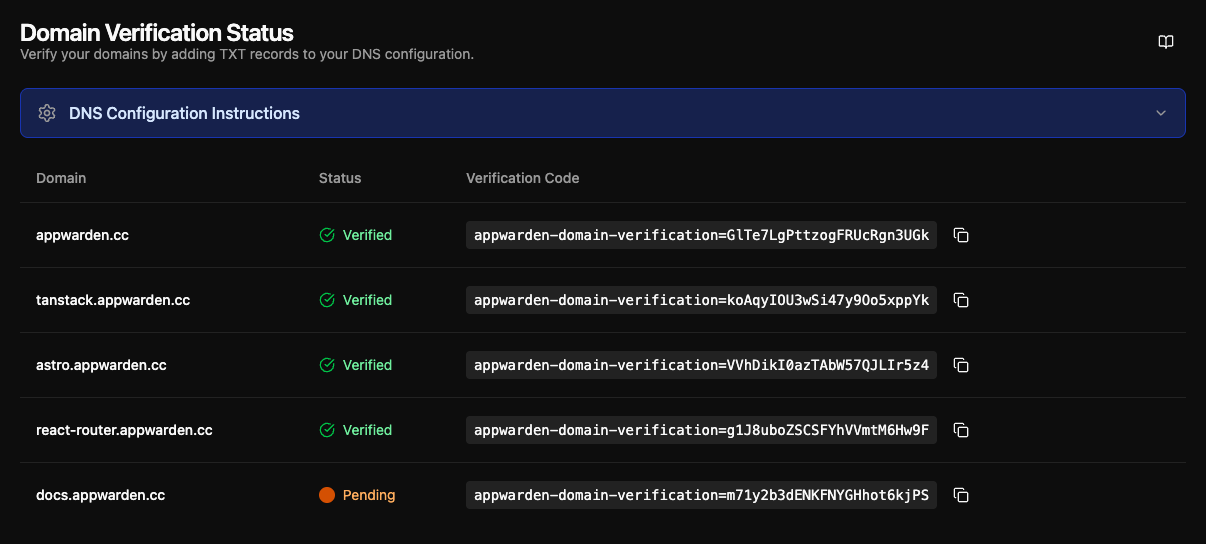
Section titled “Step 4: Check Verification Status”In the Appwarden dashboard, navigate to Settings > Security. The Domain Verification card displays all domains from your configuration files along with their verification status.
The table shows:
- Domain: Domain name from your configuration files
- Status: Current verification status
- Green checkmark: Domain is verified
- Orange pulsing circle: Verification is pending
Checking Verification Status
Section titled “Checking Verification Status”Once your middleware is deployed, Appwarden will automatically detect and verify your domain when it receives the first successful heartbeat.
Automatic Verification
Section titled “Automatic Verification”After deploying your application with the middleware:
- Navigate to Settings > Security in the Appwarden dashboard
- Check the Domain Verification card for your domain’s status
- Look for the status indicator to change from an orange pulsing circle to a green checkmark
- This typically happens within minutes of the first successful middleware heartbeat
Troubleshooting Domain Verification Issues
Section titled “Troubleshooting Domain Verification Issues”If you’re having trouble, join the community and ping us for assistance. We’d be happy to check your setup.
If your domain remains unverified after following the steps above, work through these troubleshooting steps:
Step 1: Check Your Domain Status in the Dashboard
Section titled “Step 1: Check Your Domain Status in the Dashboard”Navigate to Settings > Security in the Appwarden dashboard. The Domain Verification card displays all your domains with their current verification status:
- Green checkmark: Domain is verified
- Orange pulsing circle: Domain verification is pending
Step 2: Verify Middleware is Installed
Section titled “Step 2: Verify Middleware is Installed”Ensure the @appwarden/middleware package is properly installed in your application:
- Check your
package.jsonto confirm the package is listed - Verify the middleware is imported and configured in your application
- Confirm your API token is correctly set in your environment variables
Step 3: Check Middleware Configuration
Section titled “Step 3: Check Middleware Configuration”Verify API token:
- Ensure your API token is valid and not expired
- Check that the token has the correct permissions
- Confirm the token is properly set in your deployment environment
Check middleware setup:
- Review the appropriate integration guide for your platform:
- Ensure the middleware is configured to run on the correct routes
- Verify the middleware is not being blocked by other middleware or configurations
Step 4: Verify Deployment
Section titled “Step 4: Verify Deployment”Check application deployment:
- Confirm your application with the middleware is successfully deployed
- Verify the deployed version includes the middleware changes
- Check deployment logs for any errors related to the middleware
Test middleware functionality:
- Access your application through its domain to trigger the middleware
- Check your application logs for middleware heartbeat activity
- Look for any error messages related to Appwarden middleware
Step 5: Domain Not Appearing in Dashboard
Section titled “Step 5: Domain Not Appearing in Dashboard”If your domain doesn’t appear in the Domain Verification card:
- Ensure your domain configuration repository is connected
- Verify the domain is listed in your
.appwarden/domains/*.ymlconfiguration files - Check that your configuration changes have been merged to the main branch
Step 6: Check the Dashboard Again
Section titled “Step 6: Check the Dashboard Again”Return to Settings > Security in the Appwarden dashboard. If your middleware is correctly configured and has sent a successful heartbeat, the domain status will automatically update to show a green checkmark.
If your domain is still marked as pending after confirming your middleware is correctly installed and deployed, please reach out to us on Discord for further assistance.
Next Steps
Section titled “Next Steps”Once your domains are verified:
- Test quarantine functionality: Run
/quarantine lockin Discord or/appwarden-quarantine lockin Slack, then unlock, to ensure everything works - Configure monitoring: Set up domain configuration files
- Review incident management: Learn about incident detection and response
- Set up notifications: Configure team alerts for security incidents