Quarantine your domain
Overview
Section titled “Overview”Appwarden lets you instantly quarantine your domain with a single Discord or Slack command, immediately disabling all user interaction to mitigate active security breaches. This is known as quarantining your domain.
When quarantined, all users are redirected to a static page of your choice, effectively preventing your website from potentially harming users in a worst case scenario. During a security breach, this instant quarantine capability can mean the difference between containing the incident and suffering catastrophic damage to your reputation and user assets.
Prerequisites
Section titled “Prerequisites”To enable Appwarden to quarantine your domain, please complete the Getting Started guide. The guide will walk you through connecting your Discord server or Slack workspace, installing the Appwarden middleware, creating an API token, and verifying your domain.
Commands
Section titled “Commands”Quarantine your domain
Section titled “Quarantine your domain”To quarantine your domain, issue the following command from your Discord server or Slack channel:
/quarantine lockAfter selecting a domain, Appwarden will respond with a confirmation message and quarantine your domain after a few seconds. All users will be redirected to a static page of your choice.
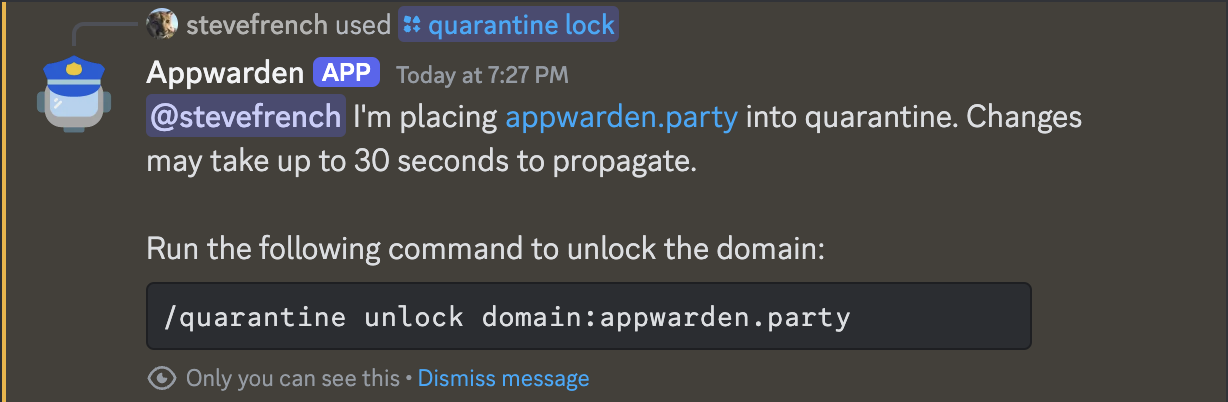
In order to quarantine a domain, the domain must be verified. Verify your domain status by navigating to Settings > Security in the Appwarden dashboard and checking the Domain Verification card.
Unlock your domain
Section titled “Unlock your domain”To unlock your domain and enable users to interact with your website, issue the following command from your Discord server or Slack channel:
/quarantine unlock
In order to unlock a domain, the domain must be verified. Verify your domain status by navigating to Settings > Security in the Appwarden dashboard and checking the Domain Verification card.
Test your domain
Section titled “Test your domain”To test if Appwarden is correctly configured to quarantine your domain, lock your domain and then unlock it after confirming the lock page appears:
/quarantine lockNavigate to your domain in your browser. You should be redirected to your configured lock page. Once you have confirmed the lock page appears, unlock your domain:
/quarantine unlock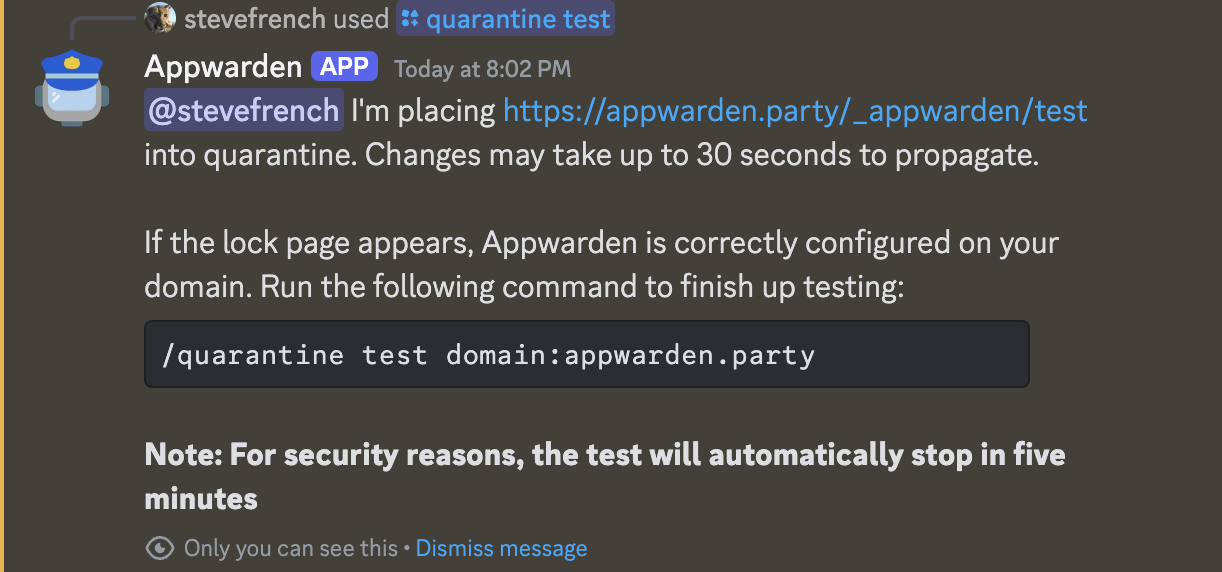
Customizing the lock page
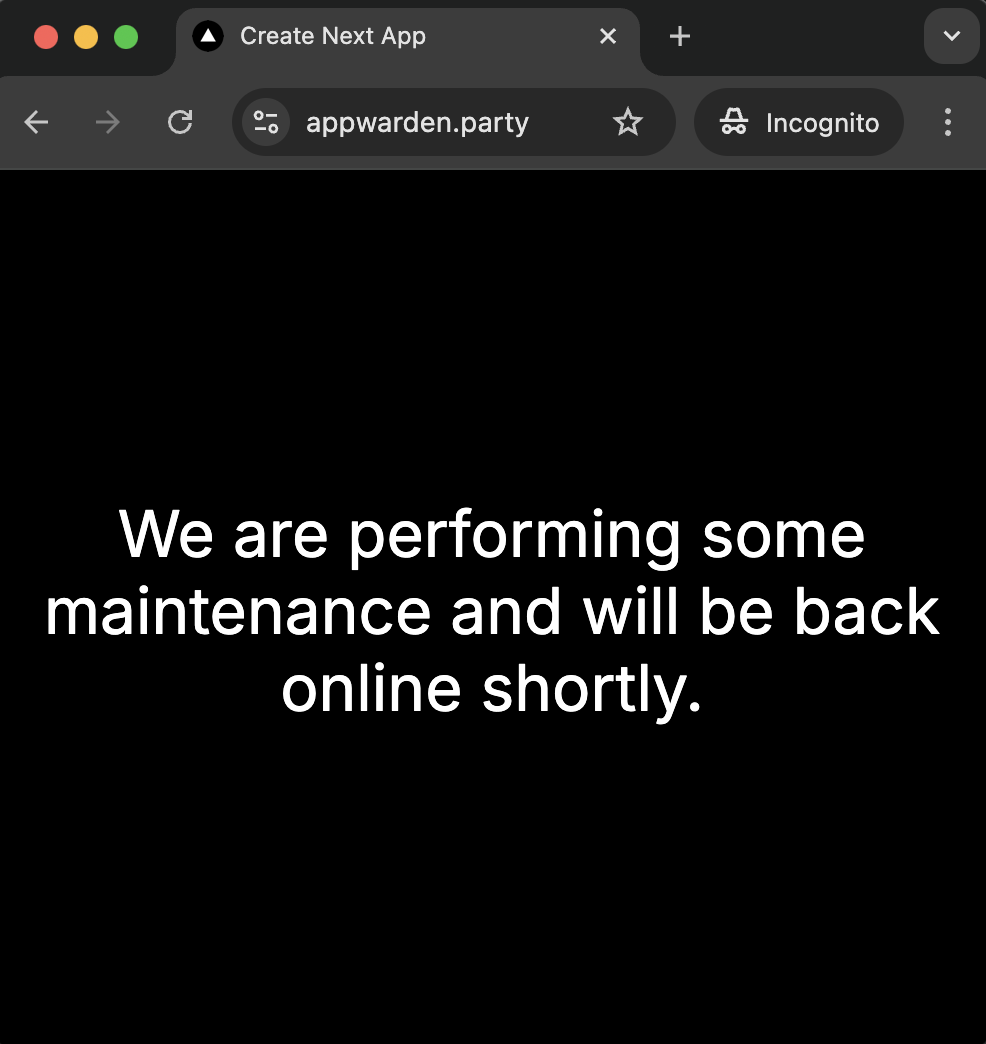
Section titled “Customizing the lock page”When you quarantine your domain, Appwarden redirects all users to a static page of your choice. To set up a lock page, create a new route in your project that renders a message to your users informing them that the domain is temporarily unavailable.
The /maintenance route is a common choice for a lock page because it can be used as both a
maintenance and a lock page.
On Cloudflare
Section titled “On Cloudflare”In your domain configuration file, update the middleware entry with your desired lock-page-slug and push the changes to your domain configuration repository, then redeploy your middleware.
On Vercel
Section titled “On Vercel”In your Appwarden middleware configuration, set the lockPageSlug to the route that renders your lock page. For example, if your lock page is at /maintenance, set the lockPageSlug to /maintenance.
export default createAppwardenMiddleware({ lockPageSlug: "/maintenance",})